 InkBurrow
How to read any page aloud in Chrome
Google Chrome™ can read a page aloud by itself, in its reading mode. Here is how to start it, what it reads, and where Dulcetmoor helps.
We tried each step in Chrome 157 on a computer in November 2026, and read Google’s own help page for reading mode on 17 November 2026. Chrome changes often, so yours may look a little different.
Read a page aloud in Chrome by itself
- Open reading modeOn the page you want to hear, right-click and choose “Open in reading mode”, or press Alt+Shift+R (⌘+Option+R on a Mac). Chrome shows the page’s text in a reading view of its own, full screen or in the side panel.
- Press PlayChrome reads the text aloud. Previous and Next jump to the sentence before or after, and Playback speed makes it faster or slower.
- Choose a voice and what is litUnder Settings, Voice selection lists the voices, with a preview of each. Voice highlight lights each word or each sentence as it is read, or nothing.
Google’s help says reading mode downloads Google’s natural voices for your language. When we watched what Chrome sent while it read, it fetched those voices and no request went to a speech service: the voice is made on the computer.
What to know about it
- It reads in its own view. The text is read in the reading view, beside the page or over it, not on the page itself.
- Not every page. Google’s help says reading mode is not compatible with all sites and formats, like video or forum websites.
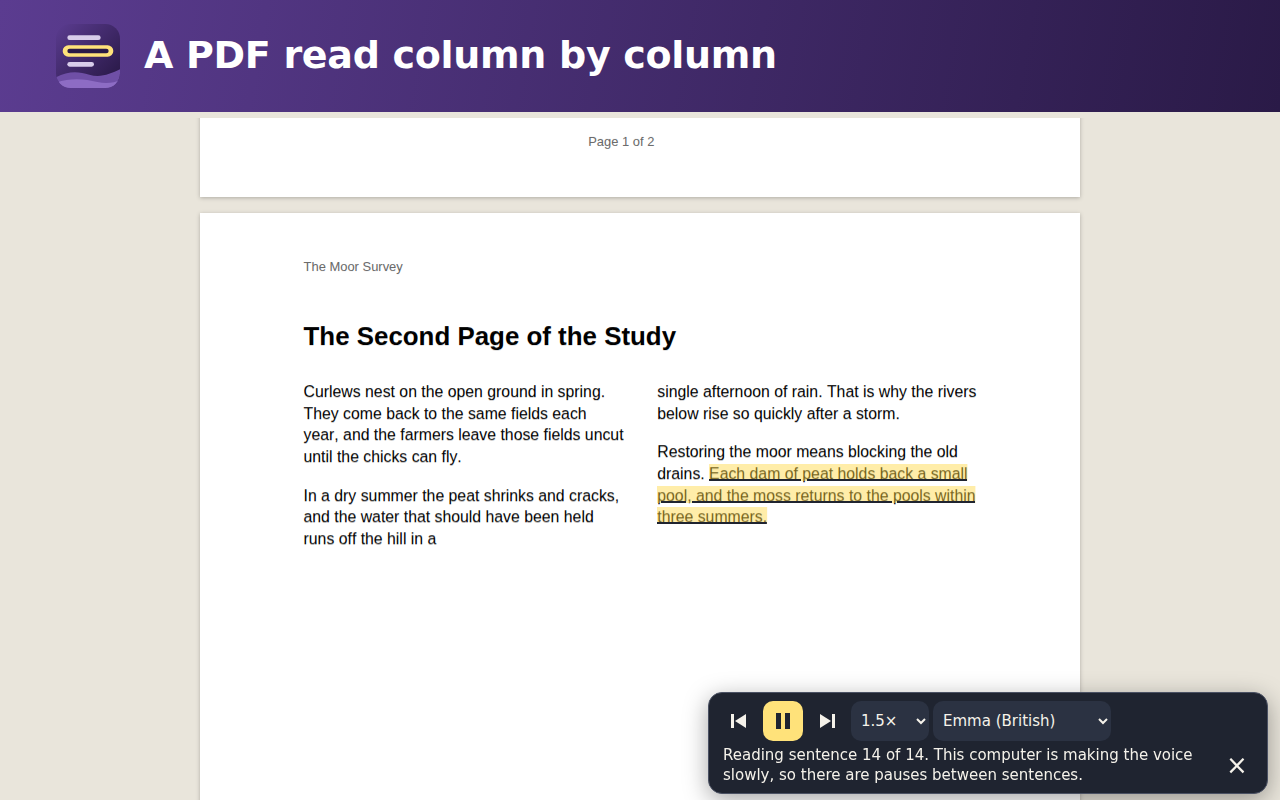
- A PDF. Chrome’s PDF viewer offers “Open in reading mode” too, and reads a two-column page in order. It also reads each page’s running head and page number, on every page.
Microsoft Edge
Microsoft Edge has a Read aloud of its own. Microsoft’s page about it says it can be used online and offline, and that with an active internet connection it offers dozens of natural-sounding voices. Those voices are named “Online (Natural)”: the words go online to be spoken.
Where Dulcetmoor helps
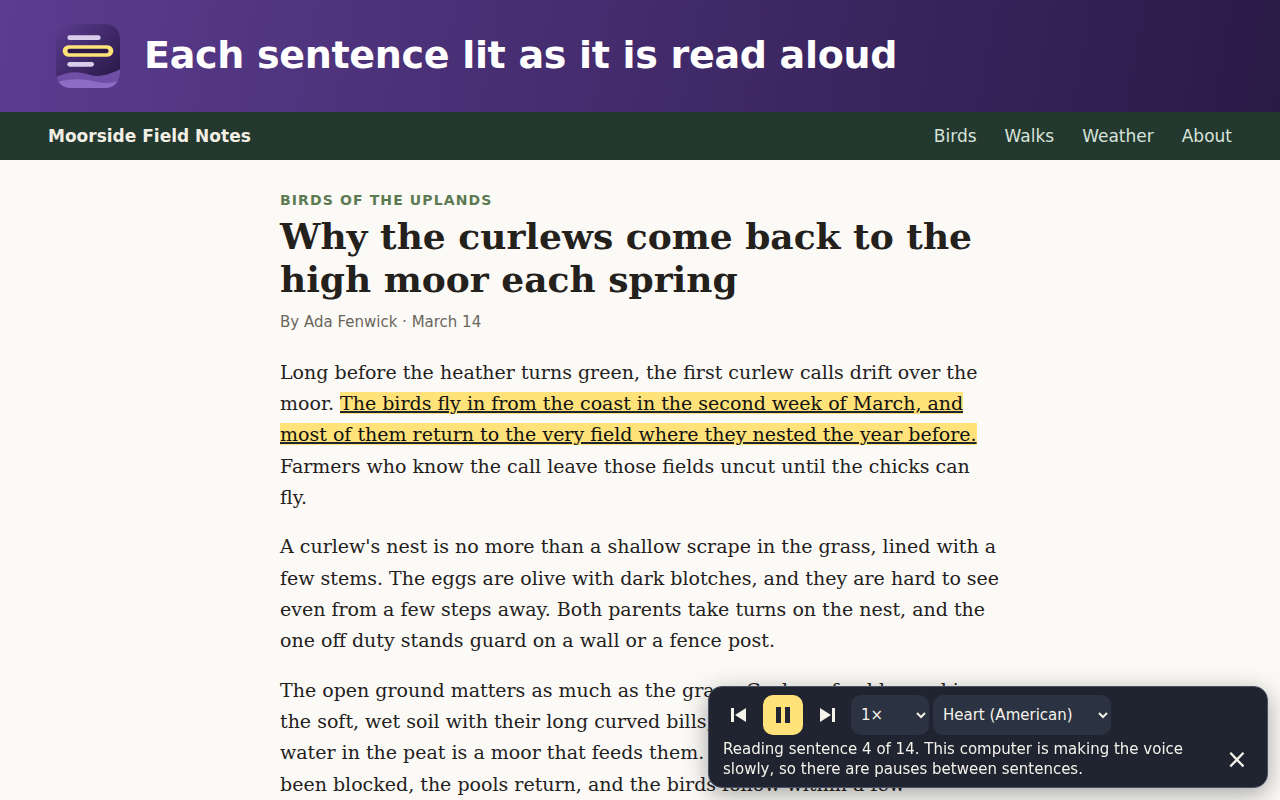
Dulcetmoor is a browser extension for Google Chrome™ that reads aloud in a natural voice of its own. The voice is made on this computer. What you read is never sent anywhere.
- One press on the page reads the article from the top, on the page itself, with each sentence lit where it stands. Click a sentence to go on from there.
- Select some words and right-click to hear just those.
- A PDF is read column by column, without its running heads and page numbers.
- 7 voices of its own, 5 American and 2 British, at speeds from 0.75× to 2×, all made on this computer and inside the extension: nothing is fetched while it reads.
- No account and no sign-in.
Dulcetmoor is coming soon to the Chrome Web Store, for Google Chrome™ on a computer.
More about Dulcetmoor, and how to install it.
Google Chrome is a trademark of Google LLC. Use of this trademark is subject to Google Permissions. Microsoft Edge is a trademark of the Microsoft group of companies.